


iPhone 16 Pro Max vs iPhone 15
October 5, 2025


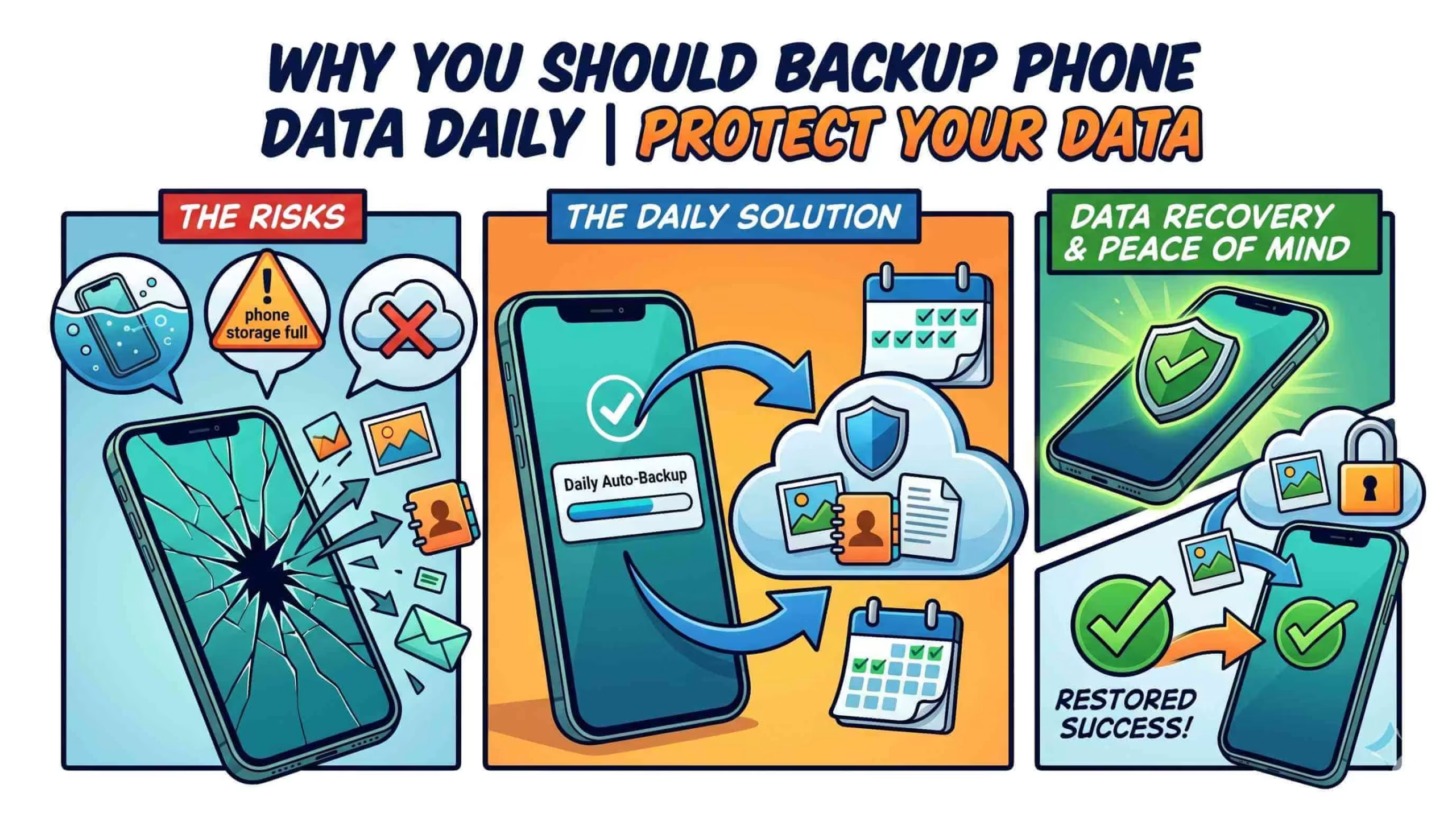
In today’s digital world, computers do more than help us talk. They store our thoughts, relationships, goals, and more. Losing info like photos, texts, apps, and important papers can be tough. That’s why it’s important to backup phone at regular times. But how often should you back up? What’s the best method? And why does backing up your phone mean so much?
If you’ve been avoiding this important job, this guide is for you. Backups are important. They protect your information, and not backing up can lead to lost data. This guide shows easy ways to back up your phone using different methods. Here are some reasons to backup phone daily and tips to do it fast. It is not only data that faces many problems and issues when using a mobile device, including screen replacement, charging port fix, camera repair, and any phone issue fix.
Backing up data from your phone means making a copy of all the important info on it. This includes apps, contacts, texts, photos, and settings. A backup helps you recover everything if you damage, lose, or have problems with your phone. You can set it up without trouble on a new gadget or after a complete restart. Backup phone keeps your digital life safe. It also helps you recover your files with minimal effort, saving you time and stress.
It’s not about peace of mind; it’s about reality. Think about all the information you depend on daily calendars, pictures, texts, and even saved app details. Without a backup, restoring all that information can become a time-consuming problem.
Check your settings to see if you have backed up phone. This works for both Android and iPhone. You can see your last copy there. Verify that you have saved your info to the cloud without trouble. If you use Google Backup or Apple’s iCloud, it’s simple to find out. On Android, you can go to Settings > System > Backup to see the state. On an iPhone, go to Settings > [Your Name] > iCloud > iCloud Backup to see the backup state.
There are two primary methods to backup your phone: cloud-based and local backups.
Connect your device to your computer to make a local backup phone. This is often done using iTunes for iPhones or the file-sharing method for Android devices. If you prefer to store info on your own devices rather than rely on the internet, this is a good choice. Android users can use the Samsung Smart Switch or Google’s saving tools. These tools help save files and apps on your machine.
How do you back up your phone with Google? For Android users, Google provides an easy way to store information open Settings. Select Google. Choose Backup. Make sure your backup choices are on. iPhone users can rely on iCloud. Your info backs up when your gadget charges and links to Wi-Fi. Cloud backups are easy. They happen on their own, so you don’t have to stress about changing files.
Sometimes, backing up an Android device gets stuck. This can be a source of significant frustration. If your backup process freezes, try the following steps:
If these steps don’t work, try troubleshooting your Google account. You can also consider using a backup phone nearby.
Backup your cell phone data daily. This protects you from problems like system crashes, theft, or software issues. If you lose your phone or it breaks, a recent backup keeps your important data safe.
Backup phone means making a copy of everything on it and putting this copy in a safe place. This backup can be done either in the cloud or on your computer. It can include apps, settings, contacts, text messages, and other personal info. This copy ensures that if you lose your phone or it gets broken, you can quickly recover everything on a new device. You can not only backup the set in your phone also can your children, but first setup your child phoneto use. You won’t lose any important information.
Backing up your iPhone is important. It keeps your important information safe, including contacts, photos, texts, and app information. If you lose, steal, or damage your phone, you’ll still have your information. Back iPhone up is an easy but important step. You might switch to a new device or want to keep your files safe. In this guide, we’ll show you two main ways to back up your iPhone: iCloud and a computer.
One of the best and most handy ways to back up your iPhone is using iCloud. This lets you backup your files to Apple’s cloud storage instantly. Just make sure you have a Wi-Fi link and enough storage space.
Connect to Wi-Fi: Make sure your iPhone is connected to a stable Wi-Fi network.
Your iPhone will perform a backup each day without requiring any action on your part. Keep it connected to Wi-Fi and plugged in. To check your backup status, go to Settings. Tap [Your Name], then iCloud, and select iCloud Backup. You’ll see the date of your last backup.
If you want a local backup or wish to skip iCloud, backing up to your computer is a great choice. You can back up your iPhone to your computer. Use iTunes for Windows or older macOS. For macOS Catalina and later, use Finder.
A daily backup phone is too much for some. But when you think about the data you use each day, it’s clear how important it is. Backup your info daily, whether you use Android or iPhone. This helps avoid big losses from system breakdowns, accidental deleting, or theft. Make it a daily habit to back up your phones. This way, your most important digital moments stay safe and sound.
Quick Questions!
Backing up your phone daily ensures that your important data, such as contacts, photos, apps, and messages, is safe in case of system crashes, theft, or accidental deletion. Regular backups help you recover your data easily and quickly if something goes wrong.
To check if your phone is backed up, go to the backup settings in your phone’s settings. For Android, go to Settings > System > Backup. For iPhone, go to Settings > [Your Name] > iCloud > iCloud Backup to view your last backup date and status.
The best methods for backing up your phone are using cloud services like iCloud for iPhone and Google Drive for Android, or using local backups on your computer through iTunes or Finder for iPhone, and Samsung Smart Switch or file transfer methods for Android.
If you don’t back up your phone regularly, you risk losing important data if your phone gets damaged, lost, or experiences software issues. Without a backup, recovering lost data can be difficult or impossible.
To back up your iPhone to iCloud, connect to Wi-Fi, go to Settings > [Your Name] > iCloud > iCloud Backup, and enable the backup. Tap “Back Up Now” to initiate a manual backup, or let iCloud back up your phone automatically when connected to Wi-Fi and charging.
To back up your Android phone to Google Drive, go to Settings > Google > Backup, and ensure that the backup option is turned on. You can also tap “Back Up Now” to create a manual backup of your phone’s data.
It’s recommended to back up your phone at least once a week, but daily backups are ideal for protecting your most recent data. Daily backups reduce the risk of losing valuable information in case of any issues with your phone.
If your Android phone backup is stuck, try checking your internet connection, restarting your phone, clearing the cache of the backup app, and ensuring that you have enough space on Google Drive. If these steps don’t help, try troubleshooting your Google account or using an alternative backup method.
October 5, 2025
October 5, 2025
September 19, 2025
September 19, 2025
September 18, 2025
September 18, 2025
Address: 15803 87 Ave NW, Edmonton, AB T5R 4G7, Canada
Phone: +1 587-444-5888
Support


To Grab The Offer, Fill The Form and Submit Now!