


iPhone 16 Pro Max vs iPhone 15
October 5, 2025


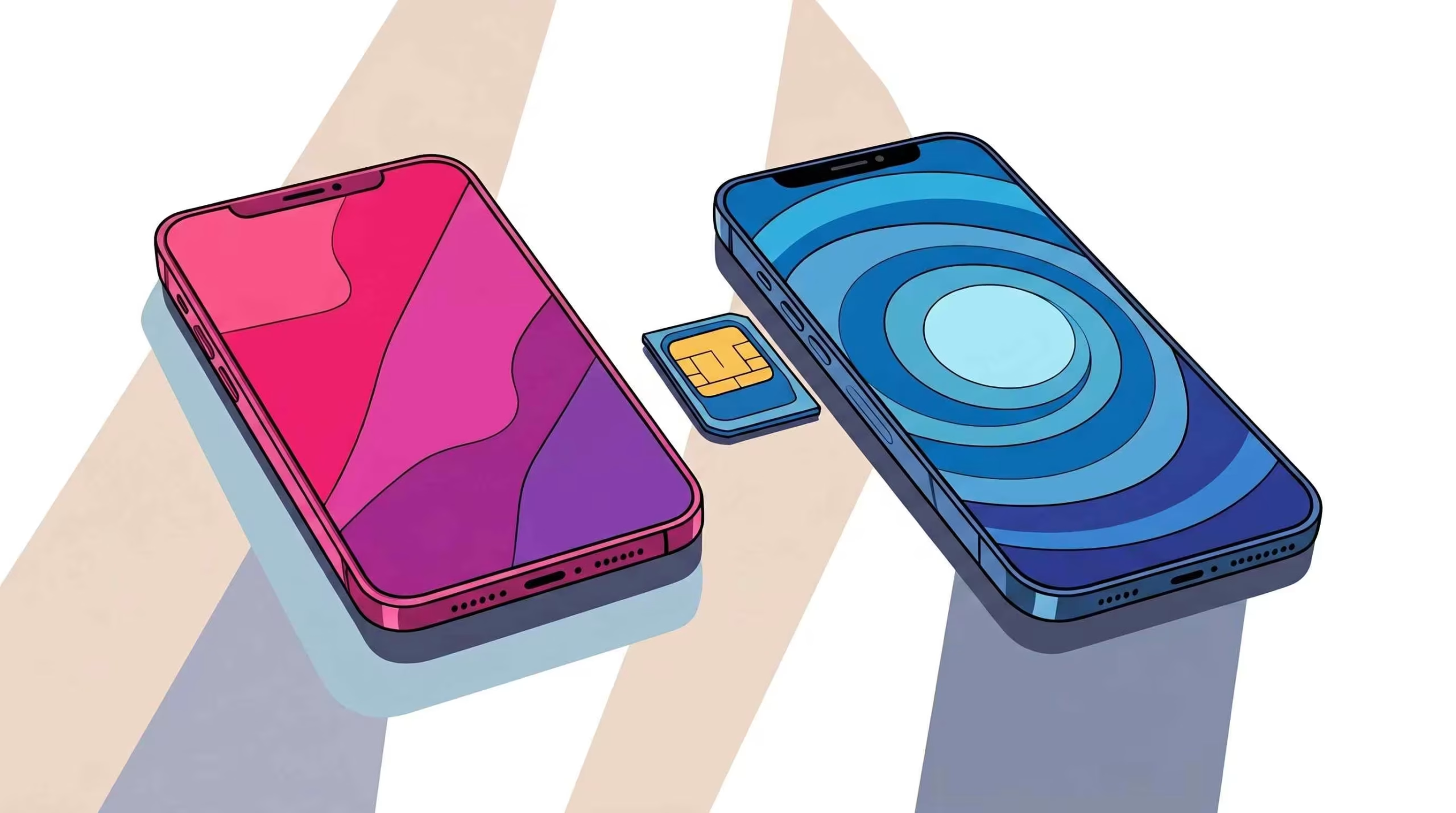
Moving to a new smartphone is an exciting experience, but the process of transferring your SIM card can sometimes feel daunting. The SIM, or Subscriber Identity Module, is the small but mighty chip that holds the key to your mobile life your phone number, network connection, and contacts. A smooth SIM transfer is essential to ensure you stay connected without interruption. This comprehensive guide will walk you through every step of the process, providing in-depth information, troubleshooting tips, and valuable insights to make your transition seamless. We’ll also provide SEO optimization and internal linking to help you navigate this process and discover related services.
A SIM card is more than just a chip; it’s your digital passport to the mobile world. It’s a small, portable memory card that securely stores the International Mobile Subscriber Identity (IMSI) number, a unique identifier that links your device to your specific mobile account. This IMSI number, combined with your carrier’s network, allows you to make and receive calls, send texts, and access mobile data. Think of it as the critical link between your physical device and your digital identity on the network.
The evolution of smartphones has led to the shrinking of the SIM card. The original and largest size, the Standard SIM (25mm x 15mm), is now a relic of older feature phones. It was succeeded by the Micro SIM (15mm x 12mm), which was a standard for many early smartphones.
Today, the Nano SIM (12.3mm x 8.8mm) is the industry standard for virtually all new smartphones, including iPhones, Samsung Galaxy, and Google Pixel devices. It’s crucial to identify the correct SIM size for your new phone. If you have a larger SIM card, you can often get a smaller one from your carrier, or use a SIM cutter tool though caution is advised with the latter to avoid damaging the card.
The future of SIM technology lies with the eSIM, or embedded SIM. Unlike a physical card, an eSIM is a small chip built directly into your phone’s motherboard. This eliminates the need for a physical SIM tray, freeing up valuable space within the device. Transferring an eSIM is a digital process that doesn’t involve physically moving a card. Many newer devices support both a physical SIM and an eSIM simultaneously, offering greater flexibility. For a hassle-free transfer, consider using our SIM activation services.
Before you even touch your SIM card, creating a complete backup of your old phone is non-negotiable. This protects you from accidental data loss. For iPhone users, iCloud is a seamless option that backs up contacts, photos, and app data to the cloud. Android users can rely on Google Drive for a similar service. Alternatively, you can use a computer to perform a local backup using software like iTunes for iOS or Android File Transfer for Android. This step ensures that all your important information, memories, and app data are safe and easily restorable to your new device.
Most modern smartphones feature a SIM card tray that can be found on the side, usually on the left or right edge. This tray has a small, circular hole next to it. Older or more budget-friendly phones might have the SIM slot located under the back cover, requiring you to remove the battery to access it. Consult your new phone’s user manual or a quick online search to pinpoint the exact location of the SIM tray.
The primary tool you’ll need is a SIM ejector tool. This small metal pin is specifically designed to fit into the ejector hole and release the SIM tray. Most new phones include this tool in the box, often tucked away in a small paper sleeve with the manual. If you can’t find it, a straightened paperclip, a small earring post, or even the tip of a sewing needle can work as a substitute. Just be sure the tool is thin enough to fit the hole without forcing it.
Safely Ejecting the SIM Card from Your Old Phone
Inserting the SIM Card into Your New Phone
Re-insert the Tray: Gently and slowly slide the tray back into the phone. Do not force it; it should click into place with minimal effort.
Once the SIM card is securely in place, power on your new phone. The device should boot up and automatically detect the SIM card. You’ll likely see a network provider name (e.g., Rogers, Bell, Telus) displayed at the top of the screen. If you’ve previously set a PIN for your SIM card, the phone will prompt you to enter it now. Proceed with the on-screen instructions to complete the initial setup of your new device.
The moment your new phone powers on, it will begin searching for a signal from your mobile carrier. The signal strength is indicated by a series of bars or a triangular icon at the top of the screen. Once you see a few bars, try making a test call or sending a text message to a friend or family member. This confirms that your SIM card is active and correctly linked to your service plan. If you have any issues, consider visiting our store for professional SIM activation services.
If you’ve tried all the troubleshooting steps and still have no service, it’s time to contact your mobile carrier’s customer support. They can perform a remote check of your account to ensure the SIM card is activated correctly and troubleshoot any network-related issues. Be prepared to provide your new phone’s IMEI number and your account details.
Before attempting an eSIM transfer, verify that both your old and new phones are eSIM compatible. Major manufacturers like Apple (iPhone XS and newer), Samsung (Galaxy S20 and newer), and Google (Pixel 3 and newer) widely support eSIM. Check the device specifications or your phone’s settings under the “About Phone” or “Cellular” section.
If you are moving an eSIM profile from an old phone to a new one, you may need to first remove the eSIM from your old device. Go to your phone’s settings, find the “Cellular” or “Mobile Data” menu, and look for the option to “Remove Data Plan” or “Delete eSIM.” This action frees up the eSIM profile for re-use on your new device.
The process for activating an eSIM is simple:
A successful eSIM transfer relies on a strong internet connection and a valid QR code. If the activation fails:
Post-Transfer Essentials
Updating APN Settings (If Needed)
Access Point Name (APN) settings are the bridge between your phone and your carrier’s network for mobile data. If you’ve moved your SIM to an unlocked phone from a different carrier, you may need to update these settings manually. You can find APN settings on your carrier’s website or by contacting their support. For expert help with APN settings or any other mobile issues, you can get a quote from ourrepair services.
Your SIM card only manages your cellular connection. You will need to manually reconnect to your home and work Wi-Fi networks by entering the passwords again. Similarly, all your Bluetooth devices, such as headphones, smartwatches, and car systems, will need to be re-paired with your new phone.
While your backup should restore most of your app data, you may need to log back into certain applications, especially banking, social media, and messaging apps. Take some time to go through your most-used apps to ensure they are all configured correctly. Also, remember to re-enable two-factor authentication for added security on your new device.
Transferring your SIM card is a critical, yet often simple, step in setting up a new smartphone. By understanding the different types of SIM cards, preparing your devices, and following these detailed steps, you can ensure a smooth and stress-free transition. Remember to back up your data, handle your SIM with care, and don’t hesitate to contact your carrier or a professional service like Cell Shoppe for assistance. With your SIM successfully installed, you are now ready to fully enjoy the features and capabilities of your new device.
Quick Questions!
A SIM card is a small chip that connects your phone to your mobile carrier’s network, storing your phone number, network information, and contacts. It’s essential for making calls, sending texts, and using mobile data on your smartphone.
The three main types of SIM cards are Standard, Micro, and Nano. Most modern smartphones use a Nano SIM, while older devices may require a Micro SIM. Be sure to identify the correct SIM size for your new phone, or get a new one from your carrier if needed.
An eSIM (embedded SIM) is a small chip built directly into the phone’s motherboard, eliminating the need for a physical card. The eSIM allows for easier activation and transfer without removing a card, and many modern smartphones support both physical SIM cards and eSIM.
Before transferring your SIM card, back up your old phone’s data to avoid losing important information. Use iCloud for iPhones or Google Drive for Android devices, or back up to a computer using iTunes or Android File Transfer.
Power off your old phone, locate the SIM tray, and gently insert the SIM ejector tool (or a paperclip) into the small hole next to the tray. Once the tray pops out, carefully remove the SIM card without touching the gold contacts.
Locate the SIM tray on your new phone, gently eject it, and align the SIM card with the tray, making sure the gold contacts are facing down. Slide the tray back into the phone until it clicks into place.
If you see “No Service,” try restarting your phone or re-inserting the SIM card to ensure it’s properly seated. You can also toggle airplane mode on and off or reset the network settings. If the issue persists, contact your carrier for assistance.
To transfer an eSIM, ensure both devices are eSIM-compatible. Deactivate the eSIM on your old phone, then add the new eSIM on your new phone by scanning a QR code provided by your carrier or following manual activation instructions.
October 5, 2025
October 5, 2025
September 19, 2025
September 19, 2025
September 18, 2025
September 18, 2025
Address: 15803 87 Ave NW, Edmonton, AB T5R 4G7, Canada
Phone: +1 587-444-5888
Support


To Grab The Offer, Fill The Form and Submit Now!