


iPhone 16 Pro Max vs iPhone 15
October 5, 2025


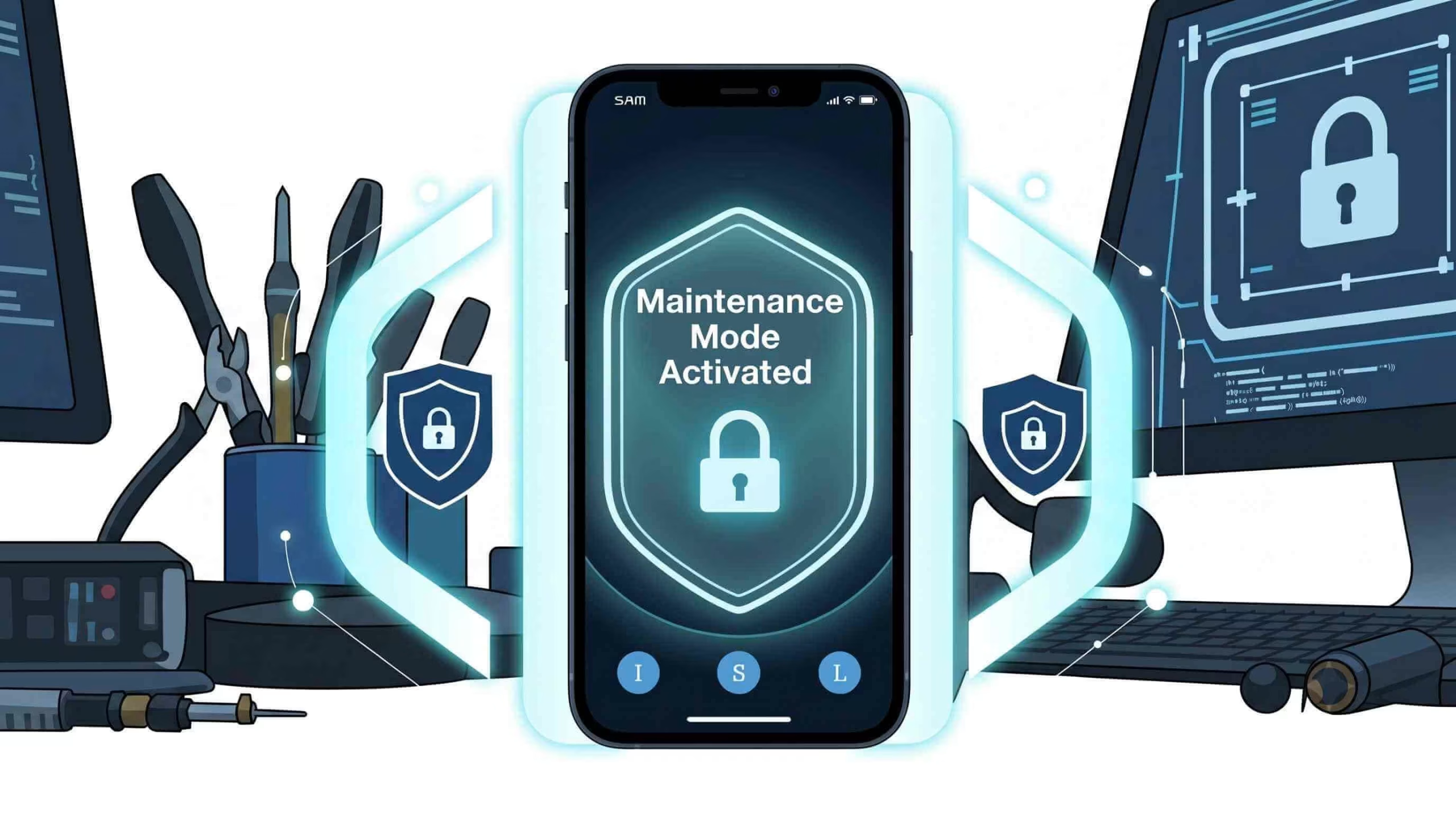
When your phone slips from your hand and the screen shatters, a wave of panic sets in. Your immediate thought is about the cost of the repair. But then a second, scarier thought comes to mind: what happens to all the private data stored on it? Your family photos, work emails, and banking info all feel exposed and vulnerable.
This is where maintenance mode on mobile becomes a lifesaver. Luckily, a new, easy solution has transformed digital privacy. Now, there’s a more innovative, stress-free solution: Maintenance Mode. This feature is on many modern smartphones. It locks your personal files, accounts, and apps from prying eyes.
Technicians can still run tests and fix your device. Consider it a “guest mode” for repair shops. Your phone works for diagnostics, but your private info stays safe. It’s a big deal for digital privacy. It gives you peace of mind when your phone needs expert help.
Maintenance mode on mobile acts like a secure “guest account” for your device. It’s made for repair technicians and is a smart solution. It creates a temporary space, which lets experts fix your phone while keeping your personal life safe.
This special mode creates a temporary, safe space. It allows you to fix issues and check diagnostics. You won’t risk your private photos, messages, or sensitive apps. When turned on, it acts like a digital fortress. It keeps all your private information safe behind a strong wall. The core magic of this feature lies in its ability to separate your data from the repair process.
Third, it still allows for a complete diagnosis. Technicians like the screen, camera, and speakers can check the hardware. They can run built-in diagnostic tools to find problems. This happens without accessing your files. This mix of security and convenience lets you hand over your device for repair. You can feel safe. It has an invisible guard that works quietly in the background.
Technicians’ experience changes when they get a phone with maintenance mode activated. They don’t see a device that has complete personalization. Instead, they get a brand new phone, like it came out of the box. The home screen is clean, featuring only the pre-installed default apps. This clean environment helps them work well and keeps their privacy safe.
What they don’t see is as important. Your photos and videos remain invisible, hidden deep within secure storage. All private messages, like texts, WhatsApp chats, or other instant messages, are safe. Social media apps such as Facebook, Instagram, and TikTok are missing. Also, banking apps and payment services like PayPal and Google Pay are unavailable.
We store all your saved login information and passwords in a secure location. This limit keeps the repair process focused on your device’s hardware and software, so there’s no chance of anyone accessing your personal data.
Enabling Maintenance Mode is more than a tech tip; it’s a critical act of digital self-defense. Today, our phones store everything necessary—financial information and personal chats. So, giving one up for repair without protection is a risk you shouldn’t take. The most significant benefit is knowing your data is safe and out of reach.
This simple step protects your privacy and saves you from the hassle of a full factory reset. Stop wasting hours backing up files, photos, and apps. You won’t have to deal with the boring task of restoring everything after a repair. By taking this small but crucial step, you’re not being careful—you’re being smart. You’re adopting a modern and secure way to own devices that prioritizes your privacy.
Apple doesn’t refer to it as “Maintenance Mode”; it’s officially designated Repair State on iPhones. This feature arrived with iOS 17.5, and it’s a big deal for anyone worried about privacy during a repair. Repair State offers a secure mode for your phone. It keeps your data safe while allowing technicians to access what they need. Your phone remains trackable, but you don’t have to wipe it or turn off Find My iPhone.
Backup Your iPhone (Crucial) – The first and most important step is to back up your device. You can do this via iCloud or by connecting your iPhone to a Mac or PC. Read to know how to back up your data daily.
Turn off Find My iPhone – Go to Settings > [Your Name] > Find My, then tap on Find My iPhone and turn it off. You will need to enter your Apple ID password to confirm.
Erase All Content or transfer data and Settings – Go to Settings > General > Transfer or Reset iPhone, then select Erase All Content and Settings. Learn how to transfer data from an iPhone to an iPad.
Remove Cards from Apple Wallet and Turn Off Apple Cash – Go to the Wallet app, select each card or pass, tap the “More” button, then “Card Details,” and “Remove Card.” In Settings, go to Wallet & Apple Pay to turn off Apple Cash.
The iPhone process requires you to back up and erase your data, so there’s no “off” switch like on an Android device. Follow the on-screen prompts to get the phone running again. In the setup process, you can restore your data from iCloud or the computer backup you made.
Google Pixel devices provide a secure way to protect your data during repairs. Their “Repair Mode” acts as a mobile maintenance mode. This feature sets up a clean operating system. It lets a technician work on your device without seeing your private info. Activating and deactivating this mode on a Google Pixel is quick and easy. This process is easy. You completely control your phone’s privacy before and after service visits.
Open Settings – Go to Settings on your Pixel phone. Search for Repair Mode – Use the search bar at the top and type “Repair Mode.” Tap on it when it appears in the results.
Read the information – Google provides a short explanation of Repair Mode. Please review it to see that your data will remain hidden during repairs.
Enter Repair Mode – ap Turn On or Enter Repair Mode. Your Pixel will restart in a secure repair environment.
Hand It Over – After a restart, your Pixel appears clean. The technician cannot see any personal files, messages, or accounts.
Get your phone back—after you complete the repair, turn on your Pixel.
Exit Repair Mode: Go to Settings → Repair Mode.
Tap Turn Off: Enter your screen lock PIN, pattern, or password to confirm.
Restart to Normal Mode – Your Pixel will reboot. It will bring back your apps, messages, and settings as you had them.
Samsung Galaxy devices lead in user privacy with a built-in maintenance mode. This feature safeguards your data during repairs and creates a safe space. You can relax. Your info, such as photos, messages, and accounts, is safe from the repair tech. Turning this feature on or off is easy. But it’s important to know the exact steps to keep your data safe before you give someone your phone.
Step 1: Open the Settings app.
Step 2: Navigate to “Battery and Device Care.”
Step 3: Find “Maintenance Mode.”
Step 4: Turn it on.
A descriptive screen will appear, explaining what Maintenance Mode does. Tap “Turn on” at the bottom. Your phone will then prompt you to restart. Before it does, you will have the option to create a system log. Once you select your preference, your device will reboot and enter Maintenance Mode. A banner on the screen will notify you, confirming that the mode is active.
Step 1: Access the “Exit” option.
Step 2: Confirm Your Identity
Step 3: Reboot and resume
After verifying your identity, the device will reboot once and return to normal. All your apps, data, and settings will be as they were before you turned on Maintenance Mode, ensuring a smooth and secure repair experience.
If you have any trouble, you can try this: go to Settings > Battery and Device Care > Maintenance Mode. Then, select the “Exit” option.
When you send your phone for repair or prepare it for a new owner, you must protect your privacy. You need to take careful steps. The best way to handle repairs and trade-ins may vary, but one goal is clear: keeping your personal data safe.
For repairs, use maintenance mode on mobile. This feature protects your data and avoids a full erase. For a trade-in or sale of your iPhone, however, a complete wipe is the only way to guarantee your information is gone for good. Understanding the distinction is crucial for both security and a smooth process.
A full and permanent wipe is the only acceptable method for a trade-in or sale. Information that helps you about Pre-Owned vs Refurbished Phones. This ensures that the next owner has no access to your personal information.
The days of pre-repair panic and the dreaded factory reset are officially over. Maintenance mode on mobile started as a basic idea. It’s a key feature in top devices like the Samsung Galaxy and Google Pixel. This change has transformed how we handle mobile phone repairs.
iPhone users have a more detailed process for backing up and erasing data. Still, the main idea is clear: never compromise your digital privacy for a hardware fix.
Quick Questions!
Maintenance Mode hides your data during a repair. A factory reset erases all data from the device for good.
No, your data is completely locked and inaccessible. The technician only sees a clean, default version of the phone’s software.
Yes, it’s always a good idea. While Maintenance Mode is secure, a significant hardware failure could still lead to data loss.
It’s common on newer Android devices. It’s on Samsung Galaxy phones as “Maintenance Mode” and on Google Pixel phones as “Repair Mode.
iPhones do not have Maintenance Mode. Apple’s official process says to back up your data completely and then factory reset your device to keep your information safe.
Remove your SIM card, microSD card, and any cases or screen protectors.
October 5, 2025
October 5, 2025
September 19, 2025
September 19, 2025
September 18, 2025
September 18, 2025
Address: 15803 87 Ave NW, Edmonton, AB T5R 4G7, Canada
Phone: +1 587-444-5888
Support


To Grab The Offer, Fill The Form and Submit Now!