


iPhone 16 Pro Max vs iPhone 15
October 5, 2025


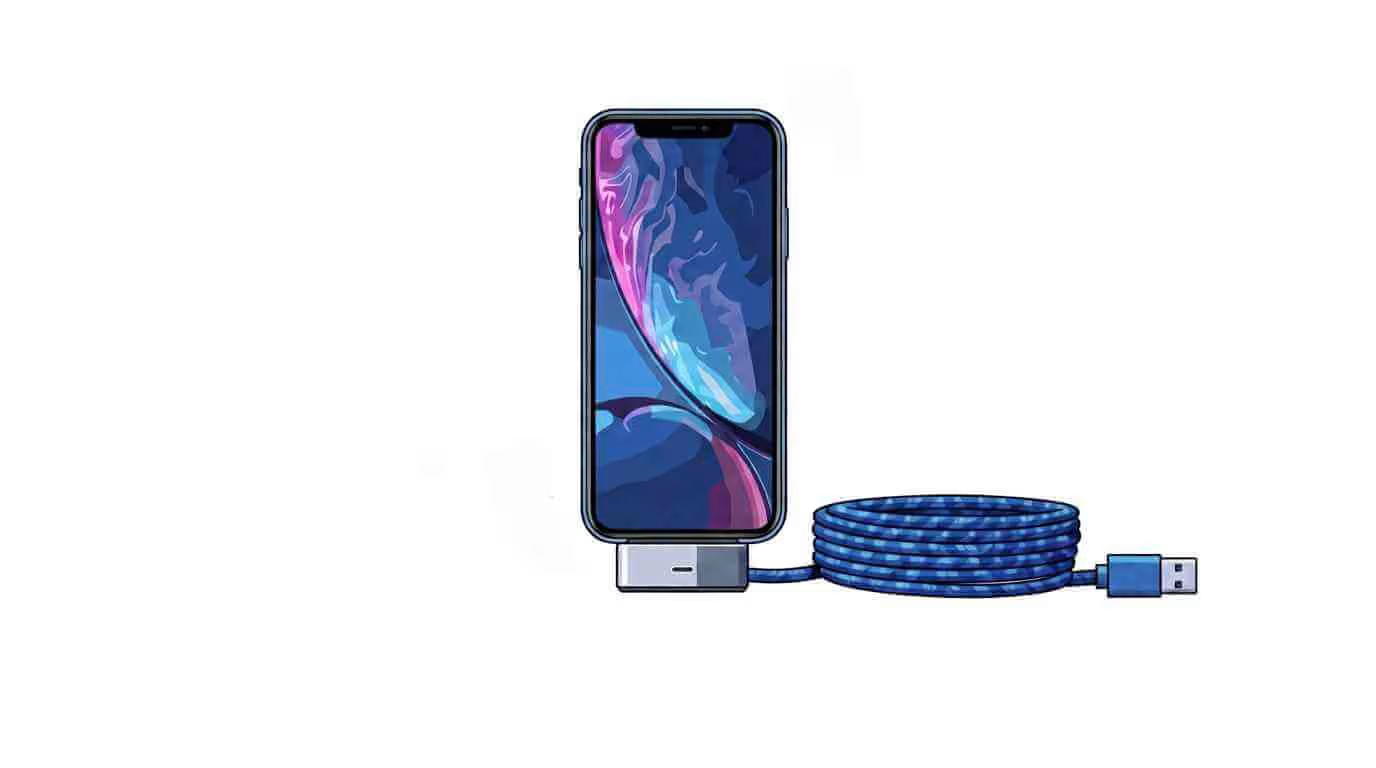
There’s nothing more serious than when your iPhone screen goes black and nothing you do brings it back to life. The power button was pressed. It didn’t matter how long you held it down for. Nothing happened, but your iPhone won’t turn on. A phone with no power probably has a typical problem. Three things could make an iPhone not work. This stuff is mostly simple to fix at home, so you don’t need to go to a service shop.
This guide tells you why your iPhone might not power on. We’ll look at both easy battery problems and more complicated program bugs. There are easy ways to fix many of these problems, which is good news. You won’t have to rush to the repair shop because you can try them out at home.
There are many ways to fix your iPhone, whether just the power button or something more serious. The idea is to get your gadget back in order and keep your data safe. Now let’s begin.
When your iPhone won’t turn on, it can feel like the end of the world especially if you rely on your device daily. What do we see?
But don’t worry, most of these issues are fixable, and you don’t always need to rush to the repair shop.
This section explains why your phone might be unresponsive. Understanding these reasons will help you before you start troubleshooting.
The most frequent cause is a completely depleted battery. If you haven’t used your phone for a while or it has been cold, the battery might be too low to show the charging icon. Sometimes, the battery might not hold a charge well, especially after prolonged use.
Try connecting your iPhone to a charger and letting it charge for a few minutes. However, you need to know the good battery health for an iPhone. Then, try powering it on again. If the problem persists, your battery might need replacement.
Another frequent culprit is a software crash. Your iPhone’s operating system can sometimes glitch, causing it to freeze or become unresponsive. This could prevent your iPhone from turning on. The phone remains powered on, but the display malfunctions.
Your iPhone may not turn on due to overheating. Using it for long periods, especially in hot places, can make the internal parts overheat. This may cause the phone to shut off to protect itself. In cases of overheating, the iPhone may not start up until it cools down. This safety feature can sometimes be mistaken for a dead phone. For a more detailed look at this topic, please read our blog on “iPhone Getting Hot.“
A drop, a fall, or exposure to water can significantly damage your iPhone’s internal parts. This includes the logic board, battery connectors, and screen assembly. The phone looks good on the outside, but something might have shorted or damaged its internal circuits, causing it not to turn on. In such cases, the damage may be irreparable without professional help for water damage repair.
If your iPhone is powered on but the screen remains black, the issue could be the display itself. A broken display can make the device look off, but it’s still working in the background. If your iPhone’s display is broken or damaged, you may need to replace the screen to fix the issue.
When your iPhone won’t turn on, the first step is often to try basic troubleshooting techniques. These steps can fix common problems and save you time. Try them before looking at more complex solutions. Remember that your data is more critical, so ensure your daily data backup mode is on! Let’s go over the most effective troubleshooting methods you can try:
Charging the device
One of the simplest reasons your iPhone won’t turn on is that the battery is completely drained. Before you jump to conclusions, ensure that you have charged your device. Connect your iPhone to a reliable charger and leave it for at least 15–30 minutes. If the battery is dead, it may take time to get enough power for the screen to respond.
Use a good-quality charging cable. Also, check the charging port for debris. This could block a proper connection. If your iPhone isn’t working after you plug it in, try a different charging cable or adapter. This will help you check if the accessories are causing the problem.
Performing a Hard Reset
If charging your iPhone doesn’t bring it back to life, the next step is to perform a hard reset (or force restart). This process can fix problems caused by software glitches or system crashes, which might make your iPhone unresponsive.
After you finish these steps, your iPhone will restart. It is not possible to remove the adverb. A hard reset won’t erase any of your data, so you don’t need to worry about losing important information or settings. But before doing a hard reset, please transfer data from the iPhone to another device. If the hard reset doesn’t work and your iPhone won’t turn on, your data is safe; it could show a more serious issue. In that case, further troubleshooting or professional help may be necessary. If you want to erase your phone data follow our step by step:
Cooling down an overheated iPhone.
An iPhone may not turn on due to overheating. iPhones have safety features. They won’t turn on if the internal temperature is too high. This might happen if you’ve used your device for a long time in the heat. It can also occur if you’ve been running heavy apps, like games or video streaming, for hours.
Turn your iPhone off to resolve this and let it cool down in a shaded area. Please don’t put it in the fridge or freezer. Quick temperature changes can harm the internal parts. Give it some time – usually 10 to 20 minutes – and try turning it on again once it feels cooler.
An iOS update on your iPhone or iPad can add fun new features and boost performance. But it’s common for users to encounter a few issues after the update. These problems can range from battery drain to app crashes and connectivity issues. Many of these problems are temporary. You can fix them with some troubleshooting steps.
After updating to the latest iOS version, users might encounter different issues. Some of these problems are more common than others. These problems can ruin your device’s experience, but the good news is that they are usually easy to fix.
Battery Drain: An increase in battery drain is one of the most noticeable issues after an update. Background processes, like indexing or app optimization, often cause this. They use more energy than usual.
Slow Performance: New features and complex tasks can slow down devices, especially older ones. You might notice lags or delays when opening apps or interacting with the device.
App Crashes or Freezing: Many apps aren’t yet optimized for the new iOS version. This can cause them to crash or freeze often. These issues can disrupt the user experience and cause frustration.
Wi-Fi or Cellular Issues: After an update, your device may struggle to connect to Wi-Fi or cellular networks. You may experience slow speeds, intermittent connections, or complete disconnections from the network.
Bluetooth Issues: Bluetooth connections may become unstable or fail after an iOS update. Devices might disconnect unexpectedly or not connect at all.
Storage Space Running Low: Some users see less storage after an update. This happens even if they haven’t added new apps or files. This can trigger warnings about low storage and prevent the installation of new apps.
After updating to a new version of iOS, you might face some issues. These include battery drain, slow performance, app crashes, or connectivity problems. Yet, simple solutions and workarounds can address most of these issues. Below are effective ways to resolve these common post-update problems. 6 following solutions can help you!
1. Battery Drain Solutions:
Battery drain is standard after an iOS update due to background tasks like indexing or app updates. To fix this, go to Settings > Battery to identify and manage power-hungry apps. Disable Background App Refresh for apps that don’t need constant updates. Restarting your device can also stop unnecessary processes. As the final step, turn on Low Power Mode in Settings > Battery. This cuts background activity and helps your battery last longer.
2. Slow Performance Solutions:
After an iOS update, older devices may slow down. This happens because the system needs more resources. To boost performance, clear up storage. Go to Settings > General > iPhone Storage. Then, delete any apps or files you don’t need. Enable Reduce Motion in Settings > Accessibility to reduce animations. If problems keep happening, go to Settings > General > Reset > Reset All Settings. This will restore default system settings without deleting your data.
3. App Crashes or Freezing Solutions:
App crashes often occur when apps aren’t updated for the latest iOS version. Ensure that you update all apps in the App Store. If issues persist, uninstall and reinstall the app to fix corrupted files. Clear the app cache if possible, or contact the app’s developer for further help.
4. Wi-Fi or Cellular Connectivity Solutions:
Go to Settings > Wi-Fi, forget your network, and reconnect to fix Wi-Fi issues. For persistent problems, reset network settings under Settings > General > Reset > Reset Network Settings. Check for carrier updates in Settings > General > About for cellular issues. Finally, restart your device to refresh connections.
5. Bluetooth Issues Solutions:
Go to Settings > Bluetooth, forget the device, and reconnect to fix Bluetooth issues. If problems persist, toggle Bluetooth off and on, or restart your device. Keep the device close and ensure you charge it to capacity. Also, check for any other Bluetooth devices that might cause interference.
6. Storage Space Solutions:
To manage storage, tap Settings, then General, and select iPhone Storage. From there, you can delete unused apps or big files. Enable iCloud Photos to store photos in the cloud, leaving only thumbnails on your device. To free up space, you can also clear Safari’s cache by going to Settings > Safari > Clear History and Website Data.
Simple debugging can often fix many issues that arise after an iOS update. But sometimes, the best thing to do is to get help from a professional. If the problems still happen after the normal fixes, you should contact Apple Support or a reputable iPhone repair business. You might also think the gear is broken.
Apple gives people who are having problems some ways to get help. After updating iOS, if your device still troubles you, you should first contact Apple Support. Apple gives you several ways to get help. Call support, live chat, or go to an Apple Store or an Authorized Service Provider for help. They can give you steps for fixing problems. They can also set up a fix or replacement if needed. Apple’s support team is excellent when you’re having a hard time. This includes bugs that won’t go away, system failures, and speed problems that can’t be fixed with easy fixes.
Consider using a third-party repair service if you can’t get an appointment with Apple or your guarantee has expired. Many small service shops specialize in Apple goods. They can fix problems faster and for less money than Apple. These services usually fix device issues, including broken charging ports, screens, and batteries.
When hiring a third-party repair service, it’s important to pick one that you can trust. Some services that aren’t Apple may use fake Apple parts. This could make your gadget work less well or void any still-valid guarantee. Read the reviews. Check the licenses. Also, make sure that the fix comes with a guarantee.
CellShoppe is the best spot to get your iPhone fixed. Our skilled techs can fix any iPhone. They offer quick and helpful service to ensure that your day is interrupted as little as possible. CellShoppe uses only high-quality, original parts. This will keep your gadget strong and help it work well after it has been fixed.
Their low prices make it easy to fix things. Besides that, every service comes with a guarantee. You can be sure that your gadget is secure. CellShoppe wants its customers to be happy. Our nice staff is here to help you fix things. Their techs can quickly and well fix problems like broken screens, batteries, and other things. CellShoppe has easy-to-find stores and internet support. It will be easy for you to get the repair done. CellShoppe is the place for quick, cheap, and skilled iPhone fixes.
FAQs for iPhone Troubleshooting
Try force restarting by pressing and holding the volume up, down, and side buttons. If it won’t turn on, charge it for 30 minutes or visit Apple Support.
Charge your iPhone, then try force restarting it. If the screen remains black, it may be a hardware issue requiring repair.
Check the charging cable and port for damage or debris. If the issue persists, try a different charger or restart your device.
Restart your iPhone, ensure no other apps are using it, and check for overheating. If the issue persists, seek repair.
Charge it for 30 minutes. If it still doesn’t turn on, contact Apple Support for a replacement or help.
Force restart the device and check the charging port. It may need professional repair due to internal damage if it’s still unresponsive.
October 5, 2025
October 5, 2025
September 19, 2025
September 19, 2025
September 18, 2025
September 18, 2025
Address: 15803 87 Ave NW, Edmonton, AB T5R 4G7, Canada
Phone: +1 587-444-5888
Support


To Grab The Offer, Fill The Form and Submit Now!