


iPhone 16 Pro Max vs iPhone 15
October 5, 2025


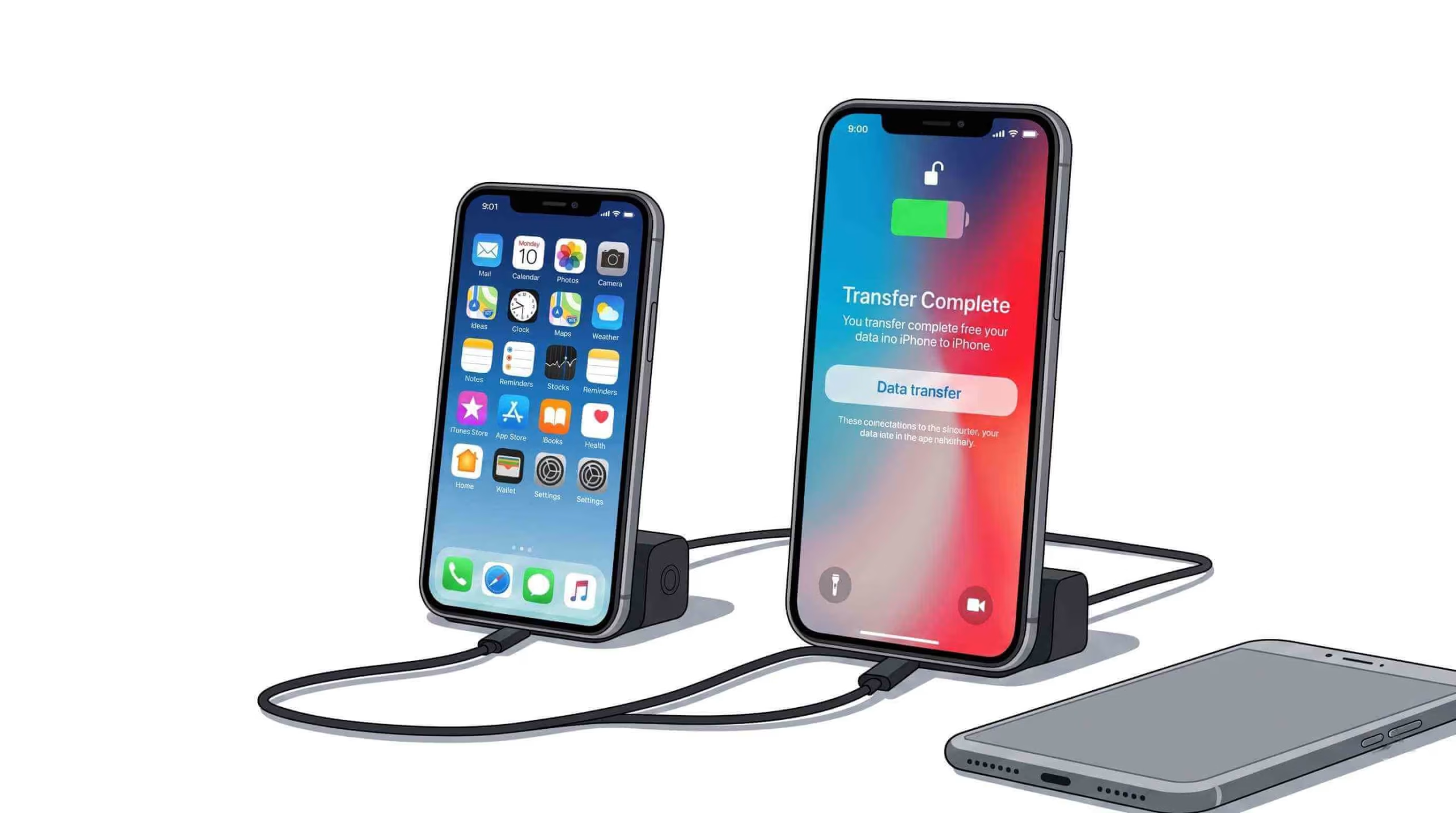
Upgrading to a new iPhone is exciting! But moving your data like contacts, photos, apps, and settings can be a bit much. Luckily, Apple has made it simple to transfer data from iPhone to iPhone. If you’re switching to a new iPhone, copying data, or moving apps, there are simple ways to make it easy and fast. In this blog post, we’ll show you how to move info from one iPhone to another. This way, your new gadget will be ready to go without any trouble.
transfer data from iphone to iphone is easy. Apple’s built-in tools make it simple. When you get your new iPhone, use Apple’s transfer tools. They help you move info from your old iPhone. One of the fastest ways to move files is through iCloud. To recover your files, sign in to iCloud on your new iPhone.
Ensure that you allow iCloud saves on your old device. Then, start the setup process. You can also use Quick Start. It helps you set up your new iPhone and move info from your old device. This is not necessary for your device data when you set up your children’s phone data. Get a complete guideline on how to set up your child’s mobile phone before use.
The smartphone market today isn’t about speed, screen size, or battery life. The competition for the best gadget has changed. These days, the camera is the most important thing to look for in a smartphone. Everyone cares about cameras these days, whether you’re a professional or just someone who enjoys taking pictures. A good cell phone has a great camera and an easy way to back up your data. Learn how to transfer your data from one iPhone to another. These five factors demonstrate why cameras on cell phones are essential in today’s smartphones.
To start, ensure both iPhones are running the latest version of iOS. Follow the on-screen steps to set up your new iPhone. It will download apps, contacts, photos, texts, and more from your old device without you needing to take any action. You can choose to move your Apple Pay settings and iCloud Keychain passwords.
If you’ve been using iCloud to back up your info, the process becomes even easier. After backing up your old iPhone to iCloud, sign in to the same iCloud account on your new iPhone. During setup, choose to recover from iCloud Backup. Your apps, photos, and settings will move without human involvement.
Once the backup is complete, set up your new iPhone and restore from this iCloud backup. Now the details: how to backup your phone data?
You can easily move apps from one iPhone to iPhone or another using Quick Start or iCloud Backup. When you recover from an iCloud backup, your apps will re-download on your new iPhone. Apps bought from the App Store will come from the cloud. The system will copy apps loaded from other sources during data sharing. To move apps, use iTunes or Finder; first, back up your old iPhone on your computer. Then, restore that backup to your new iPhone . It’s make easy to transfer data from iPhone to iPhone.
Setting up a new iPhone from an old iPhone involves a few simple steps.
Follow these steps to set up your new iPhone. It will be like your old one, with the same apps, photos, and settings.
Smart Switch is great for Android users. iPhone users have their tools for data sharing. Apple’s Quick Start is like the Smart Switch. It works without any problems when used with iPhones. If you’re going from Android to iPhone, use Apple’s Move to iOS app. It helps you move info like contacts, chat logs, photos, and apps.
Backup Before You Start: Always make sure your old iPhone is backed up to iCloud or iTunes before transferring data to avoid losing any important information.
Before starting the transfer, make sure both your old and new iPhones have the latest iOS version. This will ensure the process is smooth and avoid any compatibility issues. To share remotely, connect both devices to the same Wi-Fi network. Also, make sure Bluetooth is on. When moving files over Wi-Fi or using iCloud backup, keep both devices plugged in. This helps avoid pauses during the move.
Transfer data from iPhone to iPhone has never been easier. You can use Quick Start, iCloud Backup, or set up your gadget without help. Apple gives many choices to help make your move smooth when you purchase a new iPhone. Follow these steps to move your info from one iPhone to another. You’ll do it in a short time and with minimal work, so your new device will be ready to use. Upgrading to a new iPhone is exciting. With the right tools and information, you can move without trouble.
Quick Questions!
The fastest way to transfer data is using the Quick Start method, which allows you to set up your new iPhone by directly transferring apps, contacts, photos, and settings from your old device with minimal effort.
To transfer data using iCloud, back up your old iPhone by going to Settings > [Your Name] > iCloud > iCloud Backup and tapping “Back Up Now.” Then, during the setup process on your new iPhone, select Restore from iCloud Backup, and sign in to your iCloud account to restore the backup.
Yes, apps will be automatically downloaded from iCloud when you restore from a backup. If you used third-party apps that aren’t available on the App Store, you may need to manually transfer them via iTunes or Finder.
Yes, it is essential to back up your old iPhone using iCloud or iTunes/Finder before transferring data. This ensures that all your important information, such as contacts, photos, and app settings, are saved and ready to be restored on your new device.
If you don’t want to use iCloud, you can use iTunes (or Finder for macOS Catalina and later) to back up your old iPhone and restore that backup to your new iPhone. This method requires a computer with iTunes installed.
Yes, you can transfer data from an Android phone to an iPhone using the Move to iOS app. It allows you to move contacts, message history, photos, videos, web bookmarks, and apps during the setup process.
If the transfer is stuck or interrupted, ensure both devices are plugged into a power source, connected to the same Wi-Fi network, and have Bluetooth enabled. Restarting both devices can also help resolve issues. If the problem persists, try backing up and restoring from iTunes or Finder.
The time it takes to transfer data depends on the amount of data being moved. Typically, it takes between 30 minutes to 1 hour to transfer data, but larger amounts of data (e.g., photos, apps, and videos) may take longer.
October 5, 2025
October 5, 2025
September 19, 2025
September 19, 2025
September 18, 2025
September 18, 2025
Address: 15803 87 Ave NW, Edmonton, AB T5R 4G7, Canada
Phone: +1 587-444-5888
Support


To Grab The Offer, Fill The Form and Submit Now!