


iPhone 16 Pro Max vs iPhone 15
October 5, 2025


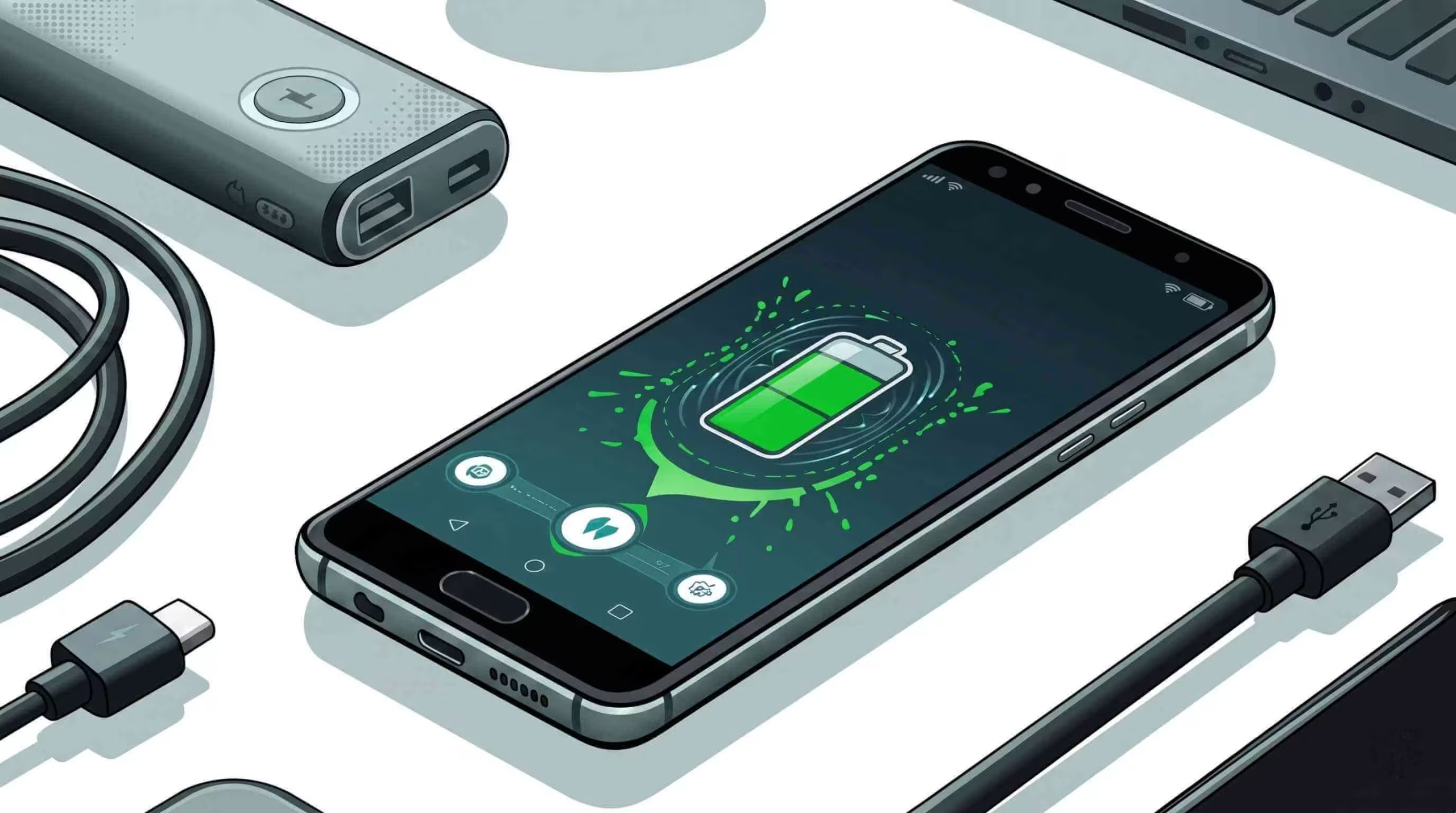
Android phones often lose charge far sooner than expected, leaving users stranded and frustrated; effective solutions can restore all-day power and stop unexpected shutdowns. This guide explains common causes of rapid battery drain, actionable settings optimizations, advanced power-management techniques, replacement criteria, top third-party saver apps, notification and location impacts, and overheating prevention. Following these Android phone battery issues solutions will enhance battery life, improve device reliability, and maintain peak daily performance.
Android phone battery issues occur when energy-consuming processes outpace charging, driven by app activity, display settings, connectivity, outdated software, hardware factors, or malware. Identifying these root causes enables targeted fixes and sustained battery life.
Here is an overview of leading drain triggers:
Cause | Mechanism | Impact |
Background apps | Apps running unseen services and sync tasks | Accelerates CPU use and wake-locks |
High screen brightness | Increased backlight power draw | Shortens on-screen usage time |
Continuous connectivity | Wi-Fi, Bluetooth, GPS, mobile data remain active | Keeps radios powered, boosting draw |
Outdated software | Inefficient code, unpatched bugs | Raises system and app workload |
Extreme temperature | Heat or cold degrades chemical reactions in cells | Reduces capacity and charge-efficiency |
Malware and adware | Unwanted processes performing background tasks | Unexpected power consumption |
Background apps, high screen brightness, and continuous connectivity are significant contributors to rapid battery drain on Android devices. These factors increase CPU usage and keep radios powered, ultimately shortening battery life. Outdated software and malware can also exacerbate the issue, leading to inefficient processes and unexpected power consumption.
Android Authority, “Android Battery Drain: Causes and Solutions” (2024)
This research provides a comprehensive overview of the common causes of battery drain, directly supporting the article’s discussion.
You can apply precise remedies to curb excessive energy use and extend your charge by isolating each factor.
Background apps consume power by running services, syncing data, and triggering wake-locks even when the screen is off. Each app that remains active in the background increases CPU cycles and network activity, draining the battery faster. For example, social media apps fetch updates continuously, keeping the processor and radio modules engaged long after you’ve closed the interface. Always backup your device data in the right way.
Screen settings such as brightness level, dark mode, and timeout duration determine how much power the display module consumes. Maximum brightness pushes backlight LEDs to full output, drawing significant energy, while a short screen-off timeout reduces the duration of peak consumption. Enabling dark mode on OLED and AMOLED panels further cuts power by turning off pixels for black areas. Have any crack in your phone screen learn how to replace screen DIY.
Keeping Wi-Fi, Bluetooth, GPS, and mobile data on continuously forces network radios to remain active, thus consuming energy even when on standby. Scanning for nearby networks and devices amplifies the draw, and poor signal strength triggers the radio to boost transmission power. Activating airplane mode or turning off unused radios prevents these constant power surges for Android phone battery issues.
Yes. Running an outdated Android OS or legacy app version often entails inefficient background processes, memory leaks, and unresolved bugs that increase CPU usage. Regular updates refine power-management algorithms, patch Android phone battery issues, and optimize code to reduce unnecessary wake-locks and resource consumption.
Temperature extremes and natural aging degrade battery capacity and efficiency. High heat accelerates chemical breakdown, and cold slows reaction rates, causing voltage fluctuations and capacity loss. Over time, repeated charge cycles diminish maximum charge capacity, making the battery deliver less runtime even under normal usage.
Malware-infected apps run stealthy background tasks mining data, displaying unwanted ads, or sending unauthorized network requests that spike CPU and network usage. To detect malware, review battery usage in Settings → Battery to spot unfamiliar apps, install a reputable antivirus, and uninstall suspicious applications to restore standard energy consumption patterns.
Optimizing Android Settings
Optimizing Android settings, such as enabling battery saver modes, adjusting display preferences, and limiting background app activity, can significantly extend battery life. Keeping the Android OS and apps updated is crucial for optimal performance and battery health.
Google, “Android Help: Save Battery Life” (2025)
Applying these optimizations together forms a cohesive strategy to boost battery longevity without sacrificing usability.
Open Settings and tap Battery.
Select Battery Saver, then toggle it on and set a start threshold (e.g., 15%).
Under Adaptive Battery, permission is granted to monitor usage patterns.
Allow the system to limit background activity for rarely used apps.
These features dynamically throttle processes, diminish background CPU use, and adjust power allocation based on your personal app habits, extending standby and active time.
Optimizing these settings curtails the display’s energy draw, directly translating into longer on-screen operation and overall battery life.
By curbing background execution, you limit wake-locks and reduce continuous CPU cycles, ensuring energy is reserved for active tasks.
Managing these radios eliminates idle scanning and high-power transmissions, leading to measurable battery gains.
Regular updates introduce code optimizations and battery-saving patches that streamline background tasks, reduce memory leaks, and refine power-management algorithms. Up-to-date system software also incorporates the latest adaptive power features, ensuring your Android phone runs efficiently and maintains stable battery performance.
Advanced techniques leverage specialized power-management modes and maintenance procedures to fine-tune energy use beyond standard settings. Employing Doze Mode, App Standby, battery calibration, and health monitoring yields precise control over charge behavior and system diagnostics.
Doze Mode pauses CPU access and network operations when the device is stationary with the screen off, while App Standby places unused apps into a sleep state. Both features reduce unnecessary background processes and network calls, cutting power draw dramatically during extended periods of inactivity.
Calibration ensures the operating system aligns reported battery level with actual chemical capacity, improving prediction accuracy and preventing unexpected shutdowns.
Battery replacement becomes necessary when capacity loss or hardware issues outweigh software remedies. Recognizing failure signs and weighing cost-benefit options guides a sound replacement decision.
Battery replacement typically costs $50 to $100, varying by device model and service provider. Manufacturer service centers offer OEM parts for premium assurance, while reputable third-party technicians provide cost-effective alternatives. When selecting an option, weigh warranty implications and part quality.
Pro Tips: Always remember to turn on maintenance mood before repair.
DIY replacement can save labor costs if you possess technical skills and quality tools, yet it carries risks of improper installation and voided warranty. Professional service guarantees expert handling, authentic parts, and a safety check for Android phone battery issues, ensuring reliable performance and compliance with manufacturer standards.
Preventing overheating combines environmental awareness, workload management, and hardware protection. You safeguard battery integrity and device longevity by avoiding extreme temperatures, limiting intensive tasks, and using proper charging accessories.
Phone overheating arises from heavy CPU/GPU use, fast charging at high current, environmental heat, and failing cells. Prolonged gaming, VR, and video streaming push processors to peak output, generating thermal load that the battery absorbs, increasing internal temperature and having Android phone battery issues.
Quick Questions!
Common causes of fast battery drain on Android phones include background apps, high screen brightness, continuous connectivity (Wi-Fi, Bluetooth, GPS, mobile data), outdated software, extreme temperatures, and malware. Identifying and addressing these causes can help improve battery performance.
Background apps consume power by running services, syncing data, and triggering wake-locks even when the screen is off. Apps like social media or email constantly fetch updates, increasing CPU usage and draining battery life. Limiting background app activity can significantly reduce battery consumption.
High screen brightness and long screen timeout periods consume a significant amount of battery power. To save battery, lower the brightness (30–50%) or enable auto-brightness. Also, enabling dark mode on OLED and AMOLED screens can save power by turning off pixels for black areas.
Keeping Wi-Fi, Bluetooth, GPS, and mobile data active constantly drains battery. To save power, turn off unused connectivity features, use airplane mode in low-signal areas, or disable location services when not in use.
Yes, outdated software can lead to inefficient processes, memory leaks, and unresolved bugs that increase CPU usage and battery drain. Regularly updating your Android OS and apps optimizes power management and improves battery life.
Doze Mode pauses background activity when the device is idle, limiting CPU access and network operations. This feature reduces unnecessary power consumption during periods of inactivity, significantly improving battery life.
You should replace your battery if it shows signs of rapid drain, overheating, swelling, or erratic shutdowns. If optimizations don’t improve performance, a battery replacement may be necessary to restore battery health.
Battery replacement typically costs between $50 to $100, depending on the device model and service provider. Manufacturer service centers offer OEM parts for a premium price, while third-party repair shops may provide cost-effective alternatives.
October 5, 2025
October 5, 2025
September 19, 2025
September 19, 2025
September 18, 2025
September 18, 2025
Address: 15803 87 Ave NW, Edmonton, AB T5R 4G7, Canada
Phone: +1 587-444-5888
Support


To Grab The Offer, Fill The Form and Submit Now!