


How a Professional Privacy Audit and Malware
July 25, 2026


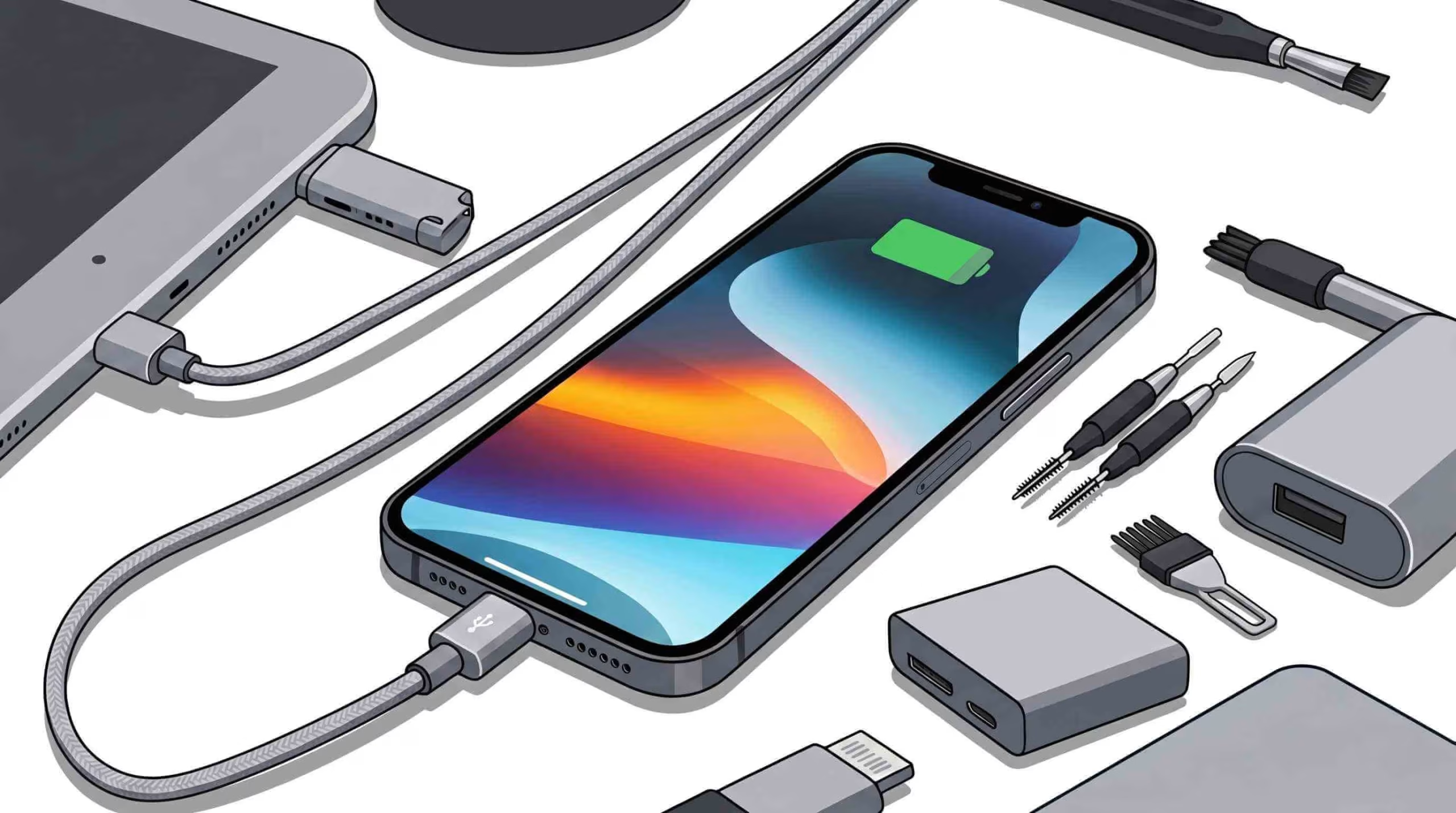
Struggling with an iPhone that refuses to charge can disrupt your day and reduce productivity. This guide delivers clear diagnostic steps and proven remedies for charging failures, software glitches, battery wear, and hardware damage. You’ll learn why your iPhone may not charge, a step-by-step troubleshooting roadmap, cost comparisons between DIY and professional repair, and preventive habits to keep your Lightning or USB-C port in peak condition. We’ll cover common causes, detailed fixes, repair cost breakdowns, and maintenance best practices to ensure reliable charging every time.
A range of issues from debris in the Lightning port to internal battery degradation can interrupt power delivery. Understanding each cause helps you target the right solution and avoid unnecessary replacements.
A clogged Lightning or USB-C port prevents proper electrical contact, leading to intermittent or no charging. Lint, dust, and pocket debris accumulate against the metal contacts, increasing resistance and triggering charging errors. Cleaning restores connection integrity and often solves the problem without part replacement. Next, inspect your cables and adapter for physical damage that can mimic port faults.
Frayed, bent, or counterfeit cables and non-certified adapters disrupt voltage flow and handshake protocols. MFi-certified Lightning or USB-C cables guarantee correct pin alignment and Apple’s authentication signal, ensuring stable current and data transfer. Using genuine or certified accessories reduces iPhone charging problems error messages and prevents port corrosion caused by loose fittings.
iOS bugs or outdated firmware can mismanage battery charging protocols, halting power intake or freezing at low percentages. System faults in the charging algorithm or corrupt background processes may misreport battery levels or turn off charging altogether. Updating to the latest iOS version resolves known bugs and optimizes battery management features like Optimized Battery Charging. Once software issues are ruled out, assess battery health metrics for deeper insights.
An aging lithium-ion battery with reduced maximum capacity below 80 percent loses its ability to accept and hold charge efficiently. Degraded cells generate higher internal resistance, causing slower charging speeds and unexpected shutdowns. Checking Battery Health in Settings reveals maximum capacity and peak performance capability. If capacity falls to critical levels, battery replacement restores charging speed and reliability.
Water ingress, bent port pins, or impact damage inside the assembly can sever or corrode connections. Liquid exposure triggers internal moisture sensors that turn off charging, while bent or broken pin contacts physically block cable insertion. Even slight port misalignment leads to loose connections. Identifying dents, corrosion discoloration, or pin deformities indicates when professional repair or port replacement is necessary for iphone charging problems.
Verifying the outlet or USB port ensures the problem isn’t external to your device. Test a computer’s multiple wall outlets, power strips, or USB ports to confirm a live voltage supply. Use a different socket on the same circuit to rule out tripped breakers or GFCI interruptions. Once the power source is confirmed stable, move on to accessory inspection.
Examine the cable jacket for frays, exposed wires, or bent connectors that compromise contact. Ensure the adapter’s USB port is dust-free and the prongs aren’t warped. Swap in a known good MFi-certified Lightning or USB-C cable and Apple-approved adapter. If charging resumes, usually replace the faulty accessory permanently to prevent recurrent faults.
A soft nonmetal tool like a wooden toothpick removes lint without shorting contacts. Gently scrape port walls and corners, then blow compressed air at low pressure to dislodge residual debris. Optionally, dab a cotton swab in 90 percent isopropyl alcohol and carefully clean the port interior. Restoring a clear contact path often fixes charging interruptions caused by debris buildup. Read the guide for clean your phone regularly.
A force restart clears hung processes that may block charging routines. On iPhone 8 and later, quickly press and release Volume Up, then Volume Down, hold the Side button until the Apple logo appears. For iPhone 7, hold Volume Down plus Sleep/Wake. On models before iPhone 7, hold Home plus Sleep/Wake. After reboot, retry charging to verify software reset success.
Keeping iOS current installs patches that fix charging anomalies and enhance power-management features. Go to Settings › General › Software Update and install the latest version. Auto-updates ensure future fixes are applied without manual intervention. Once updated, test your charging process and review Battery Health settings for improvements.
Battery Health in Settings › Battery › Battery Health reports maximum capacity and peak performance capability. Expect slower charging and reduced usage time if the maximum capacity exceeds 80 percent. Scheduling a battery replacement through Apple or an authorized service can restore the original charging speed and capacity.
Switching to Qi wireless charging or MagSafe can bypass Lightning port issues altogether. Wireless charging works via electromagnetic induction and avoids physical port wear. The port hardware likely requires cleaning or repair if your iPhone charges normally on a wireless pad. Wireless backup also extends port lifespan by reducing mechanical insertions.
Resetting all settings clears personalized configurations without erasing data, resolving deeply rooted software conflicts. In Settings › General › Transfer or Reset iPhone › reset › Reset All Settings, confirm your passcode and accept the reset. After restoration, Reconfigure Wi-Fi and preferences, then retry charging to determine if settings corruption was the culprit. Before resetting all settings of your device, Transfer data from your phone to another one.
DIY steps solve most charging failures, but hardware faults often require expert intervention. Knowing when to call a technician prevents wasted time and further damage.
Persistent charging failures after cleaning, multiple cable swaps, and software resets signal internal port damage or logic board faults. Visible corrosion, bent pins, water-damage indicators, or an unresponsive charging port confirm the need for port replacement. Attempting further DIY repair risks worsening internal components.
Expert technicians use OEM-grade parts and precision tools to replace charging ports, repair solder joints, or swap batteries under controlled environments. Professional service often includes warranty coverage and diagnostic certainty, whereas DIY port replacements can void warranty and introduce new failures if done without proper skill.
Routine maintenance and proper charging habits maintain port integrity, battery health, and reliability.
MFi certification guarantees compatibility with Apple’s authentication chip, preventing “Accessory Not Supported” errors and reducing port corrosion from loose or mismatched connectors. Certified cables maintain safe voltage and current levels that protect internal charging circuits. Features of iPhone 16model and iPhone 16 plus for better optimization.
Charging your iPhone between 20 percent and 80 percent avoids deep discharge and overcharge stress, minimizing cell degradation. Enable Optimized Battery Charging to learn daily usage patterns and delay full charges until needed. Remove the case if your device overheats during charging to prevent thermal throttling.
Applying a slim dust-cover when not charging blocks debris entry without interfering with cable insertion. Clean the port monthly using a nonmetal tool and compressed air to prevent buildup. Avoid bending the cable sharply near the connector to reduce stress on port contacts for iPhone charging problems.
Quick Questions!
Common causes for iPhone charging issues include a dirty charging port, damaged charging cables or adapters, software glitches, battery wear, and physical damage to the device. Identifying the specific cause can help you apply the right fix.
A clogged Lightning or USB-C port can prevent proper electrical contact, causing intermittent or no charging. Debris like lint or dust increases resistance, which can disrupt the charging process. Cleaning the port often resolves this issue.
Yes, frayed, bent, or counterfeit cables and adapters can cause charging failures by disrupting voltage flow. Using MFi-certified Lightning or USB-C cables and Apple-approved adapters ensures stable charging and prevents errors or port corrosion.
Outdated or corrupted iOS firmware can interfere with charging protocols. Bugs or glitches may prevent the battery from charging or cause the system to misreport battery levels. Updating to the latest iOS version usually fixes these issues.
Go to Settings > Battery > Battery Health to see your iPhone’s battery health. If the maximum capacity is under 80%, the battery’s performance may decline, leading to slower charging and shorter battery life. A replacement is needed if the capacity is low.
If your iPhone charges wirelessly but not via cable, it indicates a potential issue with the charging port. In this case, clean the port, check the cable and adapter, and test with different accessories. If the problem persists, the port may need professional repair.
If DIY solutions like cleaning the port or swapping cables don’t resolve the issue, it may be a hardware problem. Signs of physical damage like bent pins, corrosion, or water exposure suggest that professional repair or charging port replacement is needed.
To avoid future charging issues, use MFi-certified charging accessories, clean the port regularly, and adopt optimal charging habits (keeping the battery between 20–80% charge). Also, protect the charging port with a dust cover when not in use to prevent debris buildup.

Director IT and Marketing
Based in Edmonton, Alberta, Dr. MD Samiul Islam is an Information Systems Consultant, Generative AI Specialist, and Machine Learning Engineer. Holding a Ph.D. in Computing Science from the University of Alberta, he specializes in model interpretability, responsible AI frameworks, and scalable MLOps architectures across Azure, AWS, and GCP. Dr. Islam designs production-grade AI pipelines and predictive analytics solutions using PyTorch, TensorFlow, and LangChain. His domain experience spans high-impact enterprise applications, including satellite crop mapping, hydrological flood modeling, and epidemiological data analytics.
July 25, 2026
July 24, 2026
July 23, 2026
July 22, 2026
July 9, 2026
July 9, 2026
Address: 15803 87 Ave NW, Edmonton, AB T5R 4G7, Canada
Phone: +1 587-444-5888
Support


To Grab The Offer, Fill The Form and Submit Now!