


How a Professional Privacy Audit and Malware
July 25, 2026


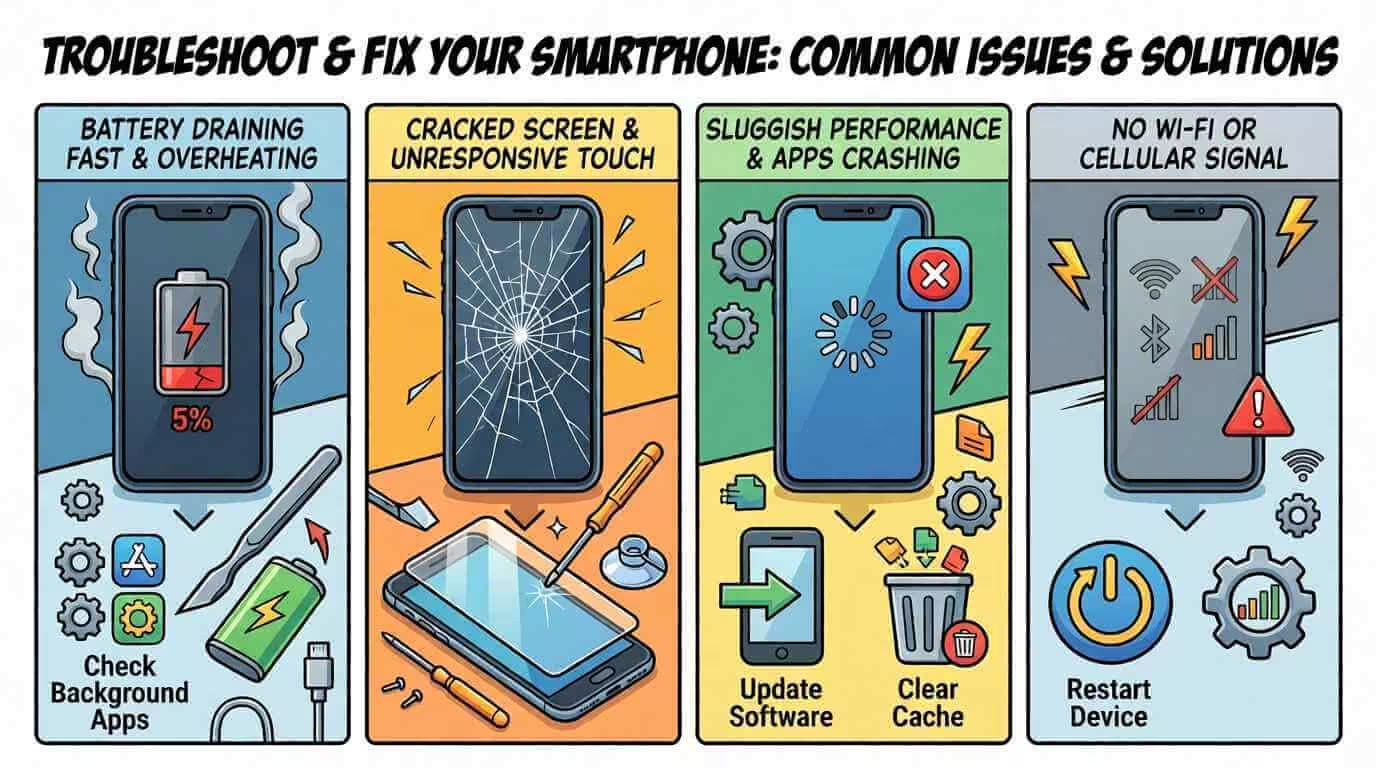
Smartphones power our day-to-day activities, yet unexpected performance hiccups from rapid battery drain to unresponsive touch screens can disrupt communication and productivity. This guide exposes the seven most frequent mobile device problems or common smartphone issues, explains their root causes, and delivers actionable repairs and maintenance strategies.
You’ll discover how to restore battery health, accelerate sluggish performance, repair screens, troubleshoot charging faults, resolve connectivity errors, fix software glitches, and know when to call in professional phone fix services. Each section blends clear definitions, underlying mechanisms, and specific benefits to equip you with featured‐snippet‐ready solutions for every common smartphone issue and solution pathway.
Smartphone battery problems manifest as sudden power loss, short runtime, erratic percentage readings due to aging lithium‐ion cells, excessive background processes, or charging circuitry faults. Understanding these causes helps you apply targeted fixes that restore runtime and protect battery health for more prolonged use.This problem is mainly found in pre-owned or refurbished iPhones.
Rapid battery drain occurs when a smartphone’s energy capacity is consumed faster than it can recharge, leading to frequent low‐power alerts. The main drivers of this issue include:
These primary factors deplete battery life and often combine to exacerbate power issues, prompting a closer look at step-by-step remedies.
To restore your smartphone’s battery performance, follow these structured repair steps:
Completing these tasks typically extends daily runtime and stabilizes percentage readings, preparing you to understand when a complete battery replacement is required.
Choosing battery replacement hinges on both performance metrics and physical indicators. Replace your smartphone battery if you observe:
Meeting any of these criteria signals that professional battery replacement will restore reliable runtime and prevent potential device damage.
Optimizing battery longevity involves consistent, gentle charging and temperature management. Key preventive measures include:
Maintaining these habits preserves battery health, reducing the need for premature replacement and enhancing device reliability. A perfect IOS device battery health for iPhone for longer span health.
Lithium-ion batteries, commonly used in smartphones, degrade over time due to factors like charge cycles and temperature. Research indicates that maintaining a charge between 20% and 80% can extend battery lifespan, reducing stress on the battery’s chemical components.
This research supports the article’s recommendations for optimizing battery health and longevity.
How Do You Improve Slow Smartphone Performance and Prevent Overheating?
Slow performance and overheating stem from resource bottlenecks and thermal buildup, which degrade user experience and can shorten component lifespan. Addressing root causes restores fluid operation and maintains safe device temperatures.
Smartphone performance declines when hardware limitations or software inefficiencies strain system resources. Common causes include:
Identifying these constraints sets the stage for targeted cleanups and configuration tweaks.
Clearing clutter reduces read/write delays and improves app launch times, optimizing overall performance and easing thermal stress.
Before killing processes at random, identify the real culprits affecting speed and battery. The following table categorizes frequent resource-hungry apps:
App Category | Resource Use | Impact |
Social Media Apps | High CPU & network sync | Frequent wake-ups and data transfers |
Streaming Services | GPU & audio decode | Sustained processing and heat generation |
Cloud Backup Tools | Background upload/download | High data usage and CPU cycles |
Location Tracking Apps | GPS & network polling | Continuous sensor activation |
Widgets & Live Wallpapers | RAM & CPU | Constant screen updates |
Monitoring these apps in system settings helps you selectively disable or restrict permissions, balancing functionality with efficiency.
When you curb intensive background processes, the phone runs cooler and faster, leading to the following strategies for active cooling.
Overheating in smartphones can lead to performance throttling and component damage. Studies show that high temperatures can accelerate battery degradation and reduce the lifespan of internal components. Effective cooling solutions, such as removing protective cases during intensive tasks, can help mitigate these issues.
This research reinforces the article’s discussion on the causes of overheating and the importance of cooling strategies. Fix theoverheating issue of your iPhone.
Screen issues range from minor flickering to complete touch failure, often resulting from impact damage or component malfunctions This a common smartphone issues. Early diagnosis guides cost-effective repairs or replacements that restore full visual and tactile functionality.
A compromised display exhibits both visible and functional symptoms. Look for:
Spotting these symptoms early allows you to assess whether a protective film, glass replacement, or full assembly swap is needed.
Repair options scale from DIY fixes to professional replacements, depending on damage severity:
Balancing cost, safety, and outcome determines whether you choose a home repair kit or enlist a technician’s expertise for smartphone issues.
Unresponsive touch input indicates digitizer issues, software conflicts, or hardware failures. To restore responsiveness:
Sequential troubleshooting narrows down the fault, ensuring you only replace parts when necessary.
Charging failures and power-up issues prevent your smartphone from fulfilling basic functions. Diagnosing port, cable, and internal hardware faults efficiently restores regular operation.
A blocked port interrupts electrical connections and can corrode contacts. To clean safely:
Regular port maintenance ensures reliable power delivery and prevents long-term connector damage.
Network connectivity binds your smartphone to the internet and peripherals. Pinpointing signal, configuration, and hardware glitches reestablishes seamless online access and pairing.
Wi-Fi drops or weak signals occur due to router settings, network interference, or phone antenna faults. Common solutions include:
Restoring a stable Wi-Fi connection ensures fast downloads and uninterrupted video calls, leading to Bluetooth and data network sections. Solve the problem of the latest iPhone bluetooth issue.
Cellular data issues emerge when SIM, APN settings, or carrier services malfunction. Address them through:
Reconnecting to mobile data restores on-the-go internet access, completing your coverage of connectivity problems. Transferring SIM in easy steps.
Software instability and app crashes disrupt productivity, but systematic resets and resource management often resolve these glitches without hardware intervention.
Apps terminate unexpectedly when memory fragmentation, corrupted data, or compatibility mismatches occur. To stabilize them:
Ensuring apps run on clean, updated foundations prevents frequent crashes and enhances overall stability.
System‐wide freezes and random restarts often derive from firmware flaws, storage errors, or overheating. Follow these remediation steps:
These actions restore system integrity, ensuring stable operation under typical workloads.
Running out of storage blocks updates and threatens data integrity. To remedy this:
Managing storage proactively prevents update failures and keeps the operating system functioning smoothly.
When Should You Seek Professional Repair for Physical Smartphone Damage?
While many minor repairs can be handled at home, complex physical damage especially involving water intrusion or intricate hardware malfunctions often requires certified technicians to avoid further harm. To avoid the data loss of your iPhone then follow the steps for taking backup of your iphone data.
Water ingress corrodes internal circuits and can cause short circuits if not addressed promptly. Diagnose and remedy by:
Early intervention prevents progressive damage, reduces repair costs, and protects internal hardware.
Audio and imaging failures often trace back to tiny components that degrade over time or after impact. Typical repair services include:
DIY repair kits offer cost savings but carry the risk of tool damage and warranty voiding, whereas professional phone repair services deliver certified parts and warranties. Consider the following comparison:
Repair Approach | Cost Estimate | Risk Level | Warranty |
DIY Kit (Battery) | $20–$40 | Moderate (incorrect installation) | None |
Professional Battery Replacement | $50–$80 | Low (certified technician) | 6–12 months |
DIY Kit (Screen) | $30–$70 | High (glass shattering, component mismatch) | None |
Professional Screen Assembly Swap | $80–$150 | Low (OEM parts) | 12 months |
Maintaining a smartphone’s battery, performance, display, charging system, connectivity, and software integrity keeps your device running at full capacity. Applying targeted fixes, ongoing preventive maintenance, and knowing when to seek expert services ensures reliable operation and extends the life of your mobile device. Trust these solutions from Cellshoppe phone & laptop repair store in Edmonton, keep your smartphone problem-free and performing optimally.
Quick Questions!
Rapid battery drain is often caused by high screen brightness, multiple background apps running, outdated software, or an aging battery. Additionally, using faulty or incompatible chargers can also contribute to excessive power loss. Reducing screen brightness, closing unnecessary apps, and updating software can help improve battery life.
Slow smartphone performance is often caused by low storage, excessive background apps, cache buildup, or outdated firmware. To fix it, clear your cache, free up storage by removing unused apps and files, and update your phone’s software. Managing background apps and limiting resources can significantly speed up performance.
If your smartphone screen is cracked, apply a tempered glass protector to prevent further damage. For unresponsive touchscreens, try restarting the device, booting into safe mode (Android), or resetting settings (iOS). If the issue persists, a screen replacement may be necessary.
Charging issues can arise from dirty ports, damaged cables, or software glitches. Clean the charging port using a non-metal tool, check for damaged cables, and update the phone’s software. If the problem persists, a professional repair may be needed, especially for hardware-related issues.
Smartphone overheating is typically caused by resource-heavy apps, external heat, or poor ventilation. To fix it, remove your phone’s case during intensive tasks, limit app usage, and avoid using the phone in hot environments. Clearing cache and ensuring proper ventilation can also help prevent overheating.
Wi-Fi issues may result from incorrect router settings or phone antenna faults. To fix Wi-Fi problems, reset network settings or rejoin the network. For mobile data issues, ensure the SIM card is properly seated and check APN settings. If problems persist, contact your carrier or reset network settings.
Signs that your smartphone battery needs replacement include battery health below 80%, swelling or deformation of the battery compartment, unexpected shutdowns, or charging cycles exceeding 500 complete cycles. If these symptoms appear, it’s time to replace the battery for optimal performance.
If your smartphone has persistent issues after troubleshooting (such as damaged ports, unresponsive touchscreens, or software glitches that can’t be fixed), or if there is visible water damage, it’s time to seek professional repair. Certified technicians can handle complex issues safely and ensure the use of original parts.

Director IT and Marketing
Based in Edmonton, Alberta, Dr. MD Samiul Islam is an Information Systems Consultant, Generative AI Specialist, and Machine Learning Engineer. Holding a Ph.D. in Computing Science from the University of Alberta, he specializes in model interpretability, responsible AI frameworks, and scalable MLOps architectures across Azure, AWS, and GCP. Dr. Islam designs production-grade AI pipelines and predictive analytics solutions using PyTorch, TensorFlow, and LangChain. His domain experience spans high-impact enterprise applications, including satellite crop mapping, hydrological flood modeling, and epidemiological data analytics.
July 25, 2026
July 24, 2026
July 23, 2026
July 22, 2026
July 9, 2026
July 9, 2026
Address: 15803 87 Ave NW, Edmonton, AB T5R 4G7, Canada
Phone: +1 587-444-5888
Support


To Grab The Offer, Fill The Form and Submit Now!